

Accept and decline shift swap & shift offer requests
When your co-employees request shift swaps or shift offers, you can use the Camelo web or Camelo app to accept/refuse the requests.
📌 If your manager enables auto-approve shift requests on Camelo, the request will be automatically approved. Otherwise, you will have to wait for your manager’s approval to proceed with the requests.
Process shift requests
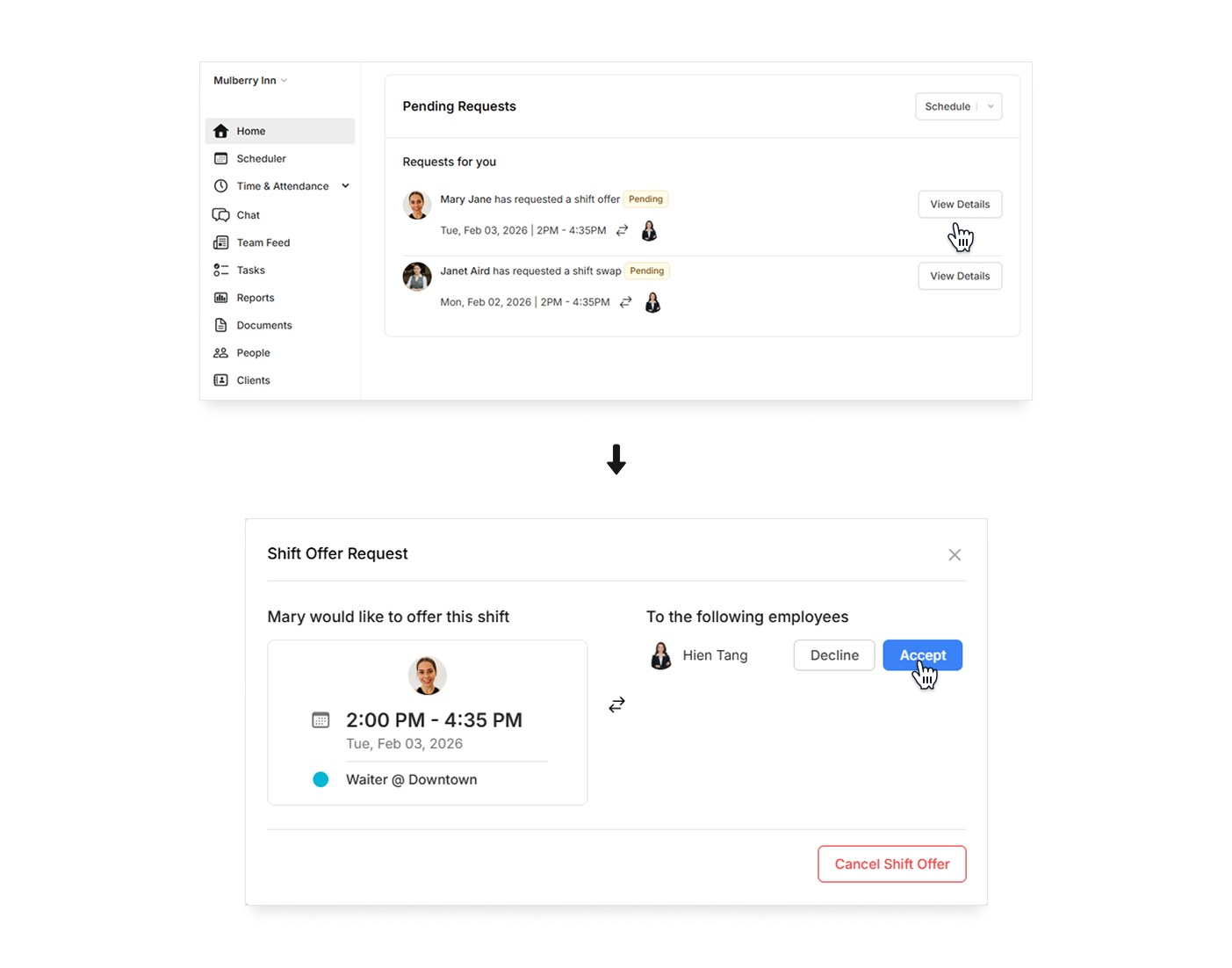
You can process requests through the Pending Requests section in Home tab.
- In the left sidebar, click Home to go to Home.
- Scroll to the Pending Request section to review the requests, then click View Details.
- Click Accept/Decline to accept/refuse the request, or Cancel Shift Swap/Offer to cancel the request.
You can process requests through the Notifications tab, the Requests for You section on the Home tab, or the Menu tab.
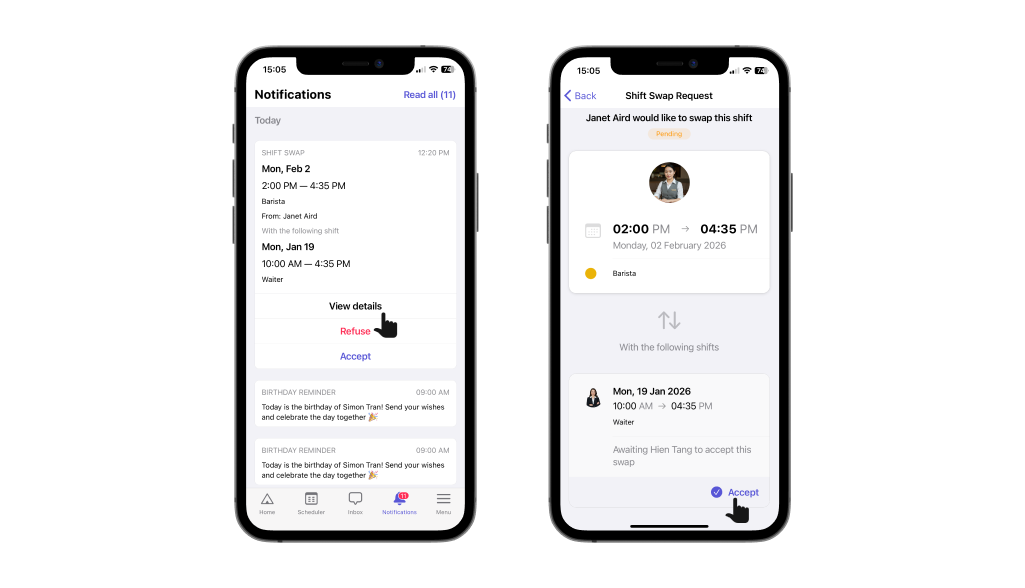
From the Notifications tab on Camelo app
When your co-employees send you new shift requests, you’ll receive mobile notifications.
- Go to the Notifications tab on the Camelo app.
- Review the details of the request.
- Tap Accept to approve the request. Or tap Refuse to decline the request.
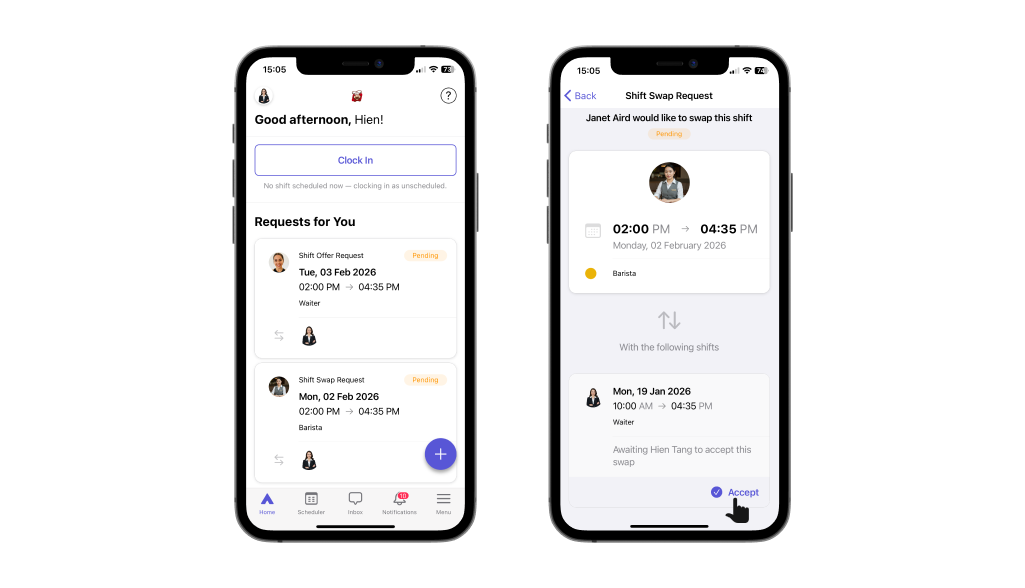
From the Requests for You section on Camelo app
You can view a list of all shift requests from the Requests for You tab on Camelo app. To do so:
- Go to the Home tab, scroll to the Requests for You section.
- You’ll see a list of all shift requests here. Tap on the shift requests to review the details.
- Tap Accept to approve the request. Or tap Refuse to decline the request.
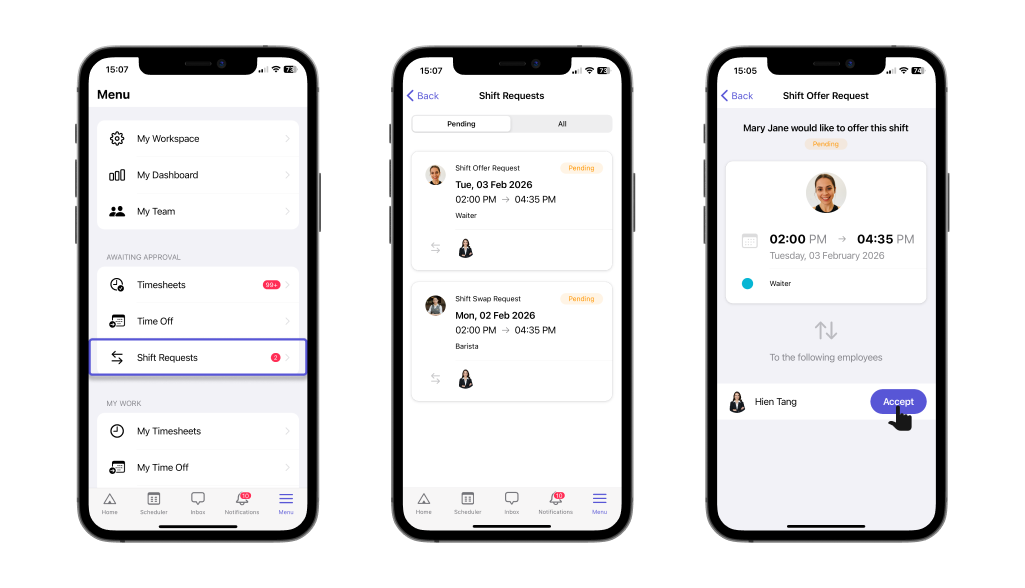
From the Menu tab on Camelo app
You can view a list of all shift requests from the Menu tab on Camelo app. To do so:
- Go to the Menu tab at the bottom of the screen.
- Scroll to the AWAITING APPROVAL section, and select Shift Requests.
- You’ll see a list of all requests waiting for your approval here. Tap on the shift requests to review the details.
- Tap Accept to approve the request. Or tap Refuse to decline the request.
You can process requests through the Notifications tab, the Requests for You section on the Home tab, or the Menu tab.
From the Notifications tab on Camelo app
When your co-employees send you new shift requests, you’ll receive mobile notifications.
- Go to the Notifications tab on the Camelo app.
- Review the details of the request.
- Tap Accept to approve the request. Or tap Refuse to decline the request.
From the Requests for You section on Camelo app
You can view a list of all shift requests from the Requests for You tab on Camelo app. To do so:
- Go to the Home tab, scroll to the Requests for You section.
- You’ll see a list of all shift requests here. Tap on the shift requests to review the details.
- Tap Accept to approve the request. Or tap Refuse to decline the request.
From the Menu tab on Camelo app
You can view a list of all shift requests from the Menu tab on Camelo app. To do so:
- Go to the Menu tab at the bottom of the screen.
- Scroll to the AWAITING APPROVAL section, and select Shift Requests.
- You’ll see a list of all requests waiting for your approval here. Tap on the shift requests to review the details.
- Tap Accept to approve the request. Or tap Refuse to decline the request.
